KEY
Bring Your Own API Keys
Use your provider API credentials to test supported models from one workspace.
Test, compare, and debug AI APIs using your own API keys. OpenAI, Claude, Gemini, DeepSeek, Mistral, Groq and more all in one developer console.
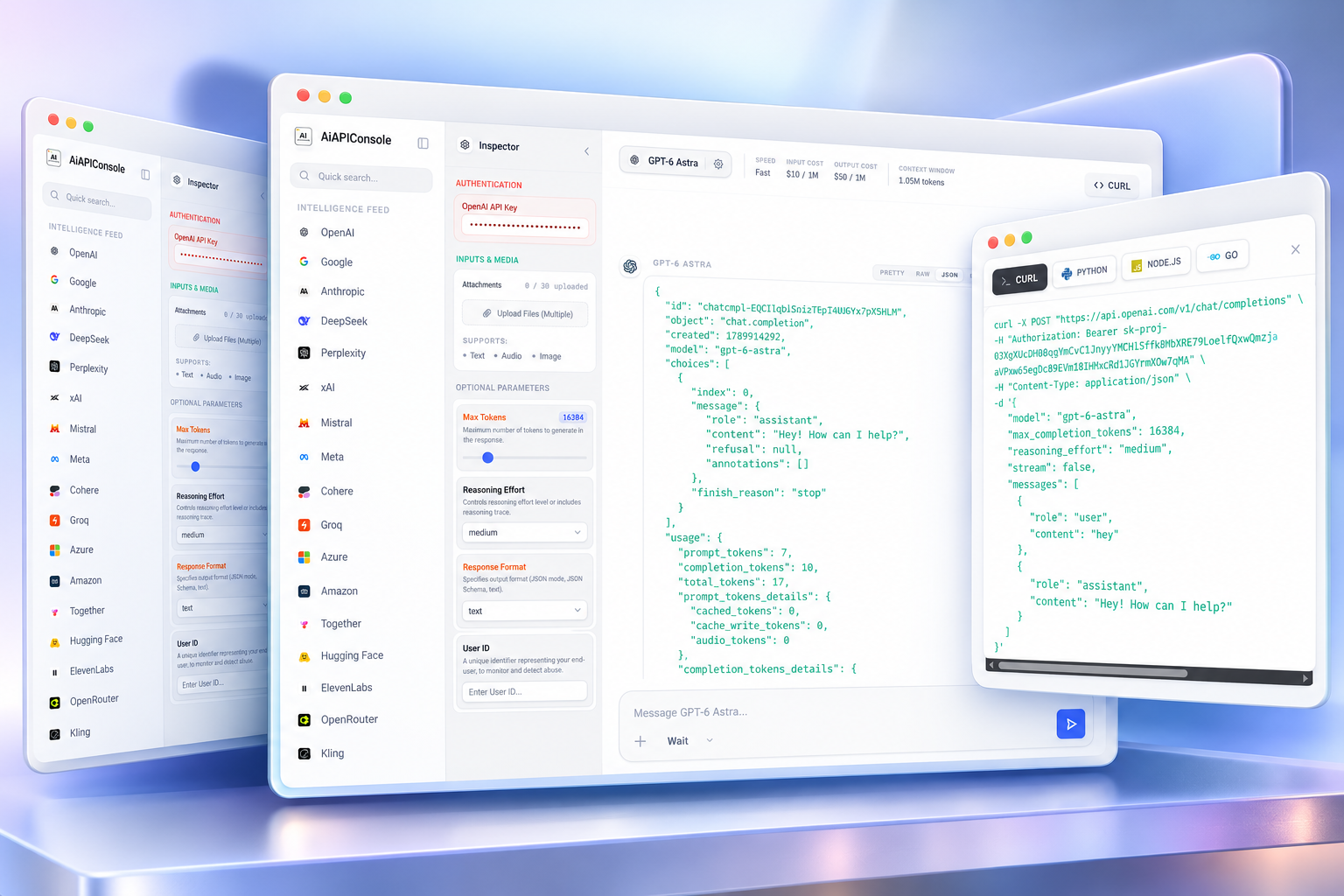
Send requests to supported AI model APIs, configure request parameters, and inspect real responses without building a separate test script for every experiment.
Use your provider API credentials to test supported models from one workspace.
Configure supported inputs and parameters, send requests to the selected provider, and inspect returned responses and errors.
Validate request formats, investigate API errors, and verify model behavior before integrating a working request into your application.
Test the same prompt across supported AI models and compare their responses before choosing a model for your application. Review response times, token usage, and estimated API costs wherever those metrics are available.
Keep the test consistent across providers so differences are easy to inspect.
Compare outputs without opening multiple provider consoles or browser tabs.
See model usage information alongside the response instead of guessing from a chat window.
Test more than text prompts. Experiment with the input formats supported by each AI model, inspect the results, and understand how different models handle real-world application inputs.
Test prompts, instructions, and multi-turn conversations to evaluate how a model responds to different inputs.
Where supported, submit images to test visual understanding, image question answering, and image analysis.
Test supported audio workflows, such as transcription or audio understanding, and inspect the returned results.
Work with supported file inputs and structured JSON requests to investigate how a model processes your data.
Find the AI model you want to test and work with it from one developer console. Select a supported provider, choose an available model, configure its supported parameters, and inspect the API response.
Test supported OpenAI models, experiment with prompts and request parameters, and inspect the returned responses before integrating them into your application.
Experiment with supported Claude models and evaluate their responses to your prompts using your own provider credentials.
Test supported Gemini models and explore the input formats and request options available for each model.
Test DeepSeek's advanced models, experiment with their deep reasoning parameters, and optimize your workflows.
Evaluate Mistral's open-weights and commercial models. Configure precise inference parameters directly from your browser.
Experiment with xAI's Grok models to test real-time reasoning capabilities and integrate them smoothly into your apps.
Test Perplexity's search-grounded models for accurate, cited responses across various search domains.
Test Cohere's enterprise-focused Command models for generation and RAG use cases in a secure local environment.
Access and evaluate the powerful open-source Llama family of models across various API providers seamlessly.
Understand exactly what an AI provider returns when you send a request. Inspect response data, investigate errors, and verify API behavior before integrating a model into your application.
Examine the original JSON payload returned by the provider instead of relying only on the formatted model output. Use it to investigate response fields, usage metadata, and other information included in the returned payload.
Review error messages returned by the provider to investigate issues such as invalid credentials, unsupported parameters, unavailable models, or malformed requests. The exact error details depend on the provider.
Where available, inspect token usage, response latency, and cost estimates to better understand individual requests. Treat latency and cost as request-specific measurements rather than guaranteed performance figures.
Use the available code-generation functionality to carry a tested request into your development workflow. Verify that the generated example matches the provider's current API requirements before using it in production.
We don't want your data. AiAPIConsole runs completely locally in your browser. API requests are made straight from your machine to the provider.
Your API keys are stored in your browser's local storage and never touch our servers.
Requests are routed directly to the provider (or through a dumb transparent proxy to bypass CORS).
No telemetry, no prompt logging, no data retention. Your experiments are yours alone.
An AI API playground lets developers test requests to AI models without first building a complete application integration. With AI API Console, you can select a supported provider and model, configure available request parameters, send prompts, and inspect the returned response.
Use a playground to experiment with prompts, understand request formats, investigate errors, and evaluate model behavior before implementing an API in your application.
Open the playground and follow these steps:
Your provider's API access, billing, and usage limits still apply.
Yes, the console is designed around using your own provider API credentials. Availability and authentication requirements depend on the selected provider.
Your keys are stored securely in your browser's local storage and are never saved on our servers. Requests are either sent directly to the provider from your browser or routed through our zero-retention transparent proxy solely to bypass CORS restrictions.
AI API Console brings multiple AI providers into one developer workspace. Choose a provider and select from the models currently available in the console.
Check the model catalog in the playground for an up-to-date list of supported providers, model identifiers, available input types, and any relevant limitations.
You can use the playground to evaluate model responses using consistent prompts. Where the interface supports simultaneous comparison, review the outputs side by side. Otherwise, switch between supported models and compare the results from separate requests.
Compare response quality alongside available usage, latency, and cost information. Results may vary with model settings, provider conditions, and input differences.
The console lists multimodal input types, including text, images, audio, video, and files. Actual support depends on the selected provider, model, and implemented request workflow.
Before sending a request, check which input formats the selected model accepts. For example, an image-understanding request requires a compatible model and a correctly formatted image input.
Yes. The console includes a toggle for viewing the raw, unparsed JSON response returned by the provider.
This is useful when investigating response fields, token-usage metadata, error objects, and other details that may not be visible in the formatted output. The fields returned depend on the provider and endpoint.
The Code Builder provides cURL, Python, Node.js, and Go examples. Use the generated request as a starting point for your application, and check the endpoint, authentication headers, request body, and provider-specific requirements before running it.
Start by checking the provider's returned error message and HTTP status code. Common causes include invalid API credentials, insufficient credits, rate limits, unsupported models, and malformed request parameters.
Correct the relevant issue and retry the request. If the problem persists, consult the selected provider's API documentation and status information.
Turn your tested AI API request into code you can use in your development workflow. Configure your prompt and supported model parameters in the playground, then generate the corresponding request code without manually rebuilding the request from scratch.
Carry your selected model, prompt, and supported parameters into the generated example. This helps reduce the manual work involved in translating a playground experiment into application code.
Generate examples in cURL, Python, Node.js, or Go, according to the languages supported by the current Code Builder.
Review the generated endpoint, headers, request body, and parameters. Check provider-specific requirements before running the code in your environment.
Use a tested request as a starting point for your application integration. Keep API credentials in environment variables or a suitable secrets manager rather than hardcoding production keys into source code.
Bring your API keys. Pick a model. Send your first request. Compare the result. Move to production when you're ready.
Launch AI API Playground →